


Content, Location and Security Categories
Categories let you tag indexed pages so that search results can be narrowed. Instead of returning every page that mentions a term, a results page can offer filters — by section of the site, by region, or by audience.
BWA provides three independent category groups, each on its own tab of the Search configuration screen.
The Three Groups
|
Group |
Typical use |
Edition |
|---|---|---|
|
Content Categories |
Classifying pages by subject or by area of the site — News, Products, Support. Configured as a tree, so categories can be nested. |
All editions |
|
Location Categories |
Classifying pages by geography — region, branch, or market. |
Professional or Enterprise |
|
Security Categories |
Classifying pages by audience, so that results can be limited to what a given visitor is entitled to see. Requires development work before it restricts anything — see below. |
Professional or Enterprise |
 Note
Note
|
|---|
|
Where a category group is not included in your edition, the tab shows a notice in place of the settings. |
Content Categories
Content Categories are managed as a tree rather than a flat list, and that is the point of them. The hierarchy is what makes results worth filtering: a Products category with Laptops, Monitors and Accessories beneath it lets a visitor narrow broadly or precisely, and lets the results page present the filters in a structure that means something rather than as one long undifferentiated list.
Because a page tagged with a child is also recorded against its parents, the tree does double duty — you tag at the level that is actually true of the page, and the broader groupings look after themselves. This is the only one of the three groups available in every edition, and for most sites it is the one that does the useful work.
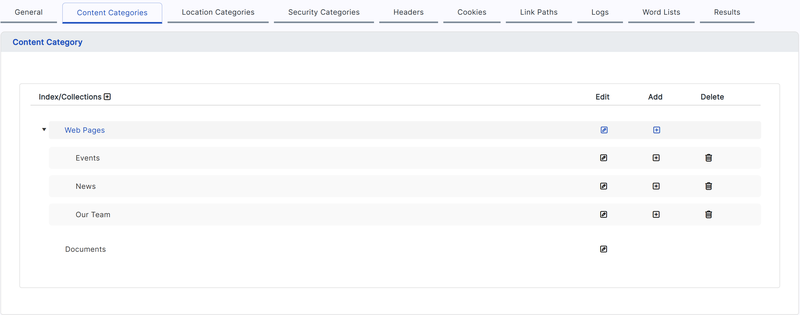
Building the Category Tree
The tree is headed by Index/Collections, with a plus button beside it. Every row below has three buttons of its own along the right-hand side.
|
Control |
What it does |
|---|---|
|
Plus, on the Index/Collections heading |
Adds a new top-level category |
|
Add (plus), on a row |
Adds a new category beneath that one — this is how the hierarchy is built |
|
Edit (pencil), on a row |
Opens the category's name and its active setting for change |
|
Delete (cross), on a row |
Removes the category, after a confirmation |
Adding and editing both open a small panel in place of the tree, with a Name field and an Is Active tick box. Confirm with Create or Update, or use back to return to the tree without changing anything.
 Caution
|
|---|
|
Deleting a category also deletes everything beneath it. The confirmation says so, and there is no undo. On a category that is merely finished with, switch it inactive instead — the tagging on existing pages survives, and the category can be brought back. |
Rearranging the Tree
Categories are moved by dragging. Names cannot be edited directly on the tree; use the Edit button for that.
- Drop a category onto another to make it a child of that one.
- Drop it between two categories to place it there in the order.
The order you arrange here is the order the categories appear to visitors, so arrange the tree the way you want the filters to read — most useful groupings first, rather than whatever order they happened to be created in.
|
Note
|
|---|
|
Rearranging changes where new tagging can be applied and how filters are presented. It does not retag pages already in the index. As with any category change, rebuild before expecting to see the effect in search results. |
Location and Security Categories
These two groups are managed as simple lists. Each entry has a Tag, which is the value recorded against a page in the index, and can be made active or inactive.
Marking an entry inactive keeps it in the list but stops it being applied on subsequent builds. This is preferable to deleting a category you may want back, because deletion is permanent.
Managing Entries
All three groups share the same row controls:
- Edit — opens the entry for renaming
- Active / Inactive — toggles whether the entry is applied during indexing
- Delete — removes the entry permanently, after a confirmation prompt
- Rows can be reordered by dragging
|
Note
|
|---|
|
Category changes only affect pages indexed after the change. Existing index entries keep the categories they were given at the time they were indexed, so a category change usually warrants a full rebuild — see Reviewing Index Results and Logs. |
Security Categories Are Not Access Control on Their Own
|
Caution
|
|---|
|
Creating a Security Category on this screen does not restrict anything by itself. It records a tag against indexed pages and nothing more. Nothing is hidden from anyone until a developer wires it up. |
Making Security Categories actually govern what a visitor sees is development work, in two parts:
- The security groups themselves are defined in development. They are not created from the Search configuration screen.
- Those groups must then be added to the search results control, which is what applies them at query time. Until that is done, the results control returns every matching page regardless of its security tag.
Plan for this before you rely on Security Categories. Content that must not be visible to unauthorised visitors should be kept out of the index altogether — see Controlling Which Pages Are Indexed and Controlling Indexing from Page Markup — rather than indexed and then filtered.
How Categories Are Assigned to Pages
Defining a category on the Search configuration screen only makes it available. Pages are tagged individually, in page properties, on the Search Categorization tab. Its Categories/Groups panel has one sub-tab per group:
|
Sub-tab |
How it is set |
|---|---|
|
Content Type |
The category tree, with a tick box against each category. A page can be given several, and the tree reflects the hierarchy you defined. |
|
Location |
A single choice from the defined locations. A page belongs to one location, not several. |
|
Security |
Tick boxes against the available security groups. A page can be given several. |
This is a per-page setting, so tagging is content work rather than configuration work — budget for it when planning a category scheme. A category nobody applies to any page has no effect on search results. The rest of that tab is covered in Search Settings on Individual Pages.
|
Note
|
|---|
|
Ticking a content category also applies every category above it in the tree, so a page tagged with a child category is found by a filter on its parent. There is no need to tick the ancestors as well. |
|
Note
|
|---|
|
Only categories marked active appear as choices here, and a page keeps whatever tags it had at the moment it was last indexed. After retagging pages, rebuild before expecting the change in search results — see Reviewing Index Results and Logs. |
How Each Group Reaches the Visitor
The three groups are tagged the same way but surface very differently. This is the part that most often surprises people.
|
Group |
What the visitor gets |
|---|---|
|
Content Categories |
Automatic. The supplied search results module builds a filter tree from them with no work on your part, showing only the categories present in the current results and how many results carry each one. |
|
Location Categories |
Development work. The location tag is recorded against the page in the index, but the supplied results module does not offer it as a filter. Surfacing it means extending the results module. |
|
Security Categories |
Development work, as described above. The supplied results module applies no security filtering at all. |
So Content Categories are the group that pays off immediately, and the one to plan first. The other two are worth tagging only if the work to use them is planned as well — otherwise you are maintaining tags nothing reads. See Adding Search to Your Site.